
CMMS asset tracking that keeps every asset's history
Fill the asset template from your spreadsheet, or send us the file and our support team loads it, free.
- Free plan, no card.

See each row's errors before import
Upload a CSV or Excel file up to 10 MB. Locations and categories must match the names in your account, so a name that doesn't match flags its row.
How to get your maintenance team to use the CMMS
Find any asset, and everything on it
Every asset sits in its place in the location tree, with its QR code and every job done on it, open to any technician.
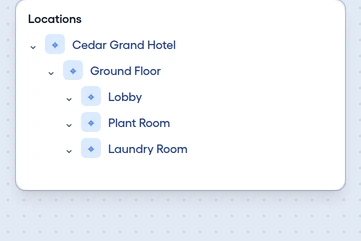
A location tree of any depth
Go as deep as you need, such as building, floor, room, and zone. Dropdowns show the full path.
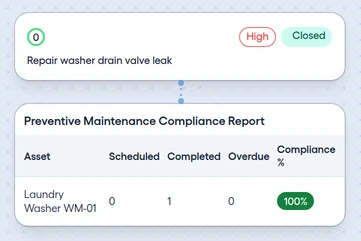
Each asset's jobs
Every job stays on the asset's record, so the next person starts with its history.
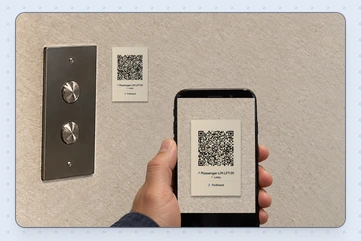
A QR code for each asset
Scan it to see the asset or report an issue, and print many labels on one PDF.


What else each asset record holds
Status, hour-meter readings, documents, and your own fields sit on the asset, and technicians open them from the work order.
Lifecycle status
Mark each asset Active, Inactive, Under Repair, or Decommissioned.
Hour-meter readings
Record a reading on the Asset Health tab. Current Hours shows the last reading and the hours remaining.
Custom fields
Set up to 9 field types for each category, image and PDF uploads among them.
Documents
Attach warranties, manuals, and certificates to the asset.
Tags
Group assets with tags, managed in one list.
Gallery and table views
See each asset as a card with its photo, or sort and filter a table.
Compatible parts
List the parts each asset uses, and each part shows the assets it serves.
On the phone
Technicians open the asset from the work order, with its location, custom fields, and documents.